How to buy Telegram Stars and Premium in Uzbekistan — 9 steps with screenshots

Every step of placing an order in the StarsJoy Mini App, each one with a real screenshot. Start to finish it takes about 2–3 minutes.

Updated: 2026-08-07 · 9 steps · ~3 minutes
In short: open @starsjoybot in Telegram and press Start → tap App to open the Mini App → choose Stars, Premium or Gift → enter a username or tap Myself → choose the amount or term → press the purchase button → transfer exactly the amount shown to the card the app displays → press "I have paid". Delivery takes about 10 seconds. You pay entirely in Uzbek som from an Uzcard or Humo card, using whichever app you already have — Click, Payme, Uzum or your bank's own.
What you need

A Telegram account and an Uzcard or Humo card. Any app works for the transfer — Click, Payme, Uzum or your bank's. No registration, no password and no international card.

How long

Placing the order takes 2–3 minutes; delivery after payment is usually about 10 seconds.

What it costs

Stars — 240 UZS per star (50 Stars = 12,000 UZS). Premium — 172,000 UZS for 3 months, 232,000 for 6, 422,000 for 12. See Stars and Premium.

Nine steps to a completed order

Each step is shown with a real screenshot from the StarsJoy Mini App

  1. Step 1

    Open the bot and press Start

    Open @starsjoybot in Telegram. The bot profile shows a short 'What can this bot do?' description — StarsJoy runs in Uzbek, Russian and English, so you can switch the interface to English from inside the bot. Press the blue Start button at the bottom of the screen.
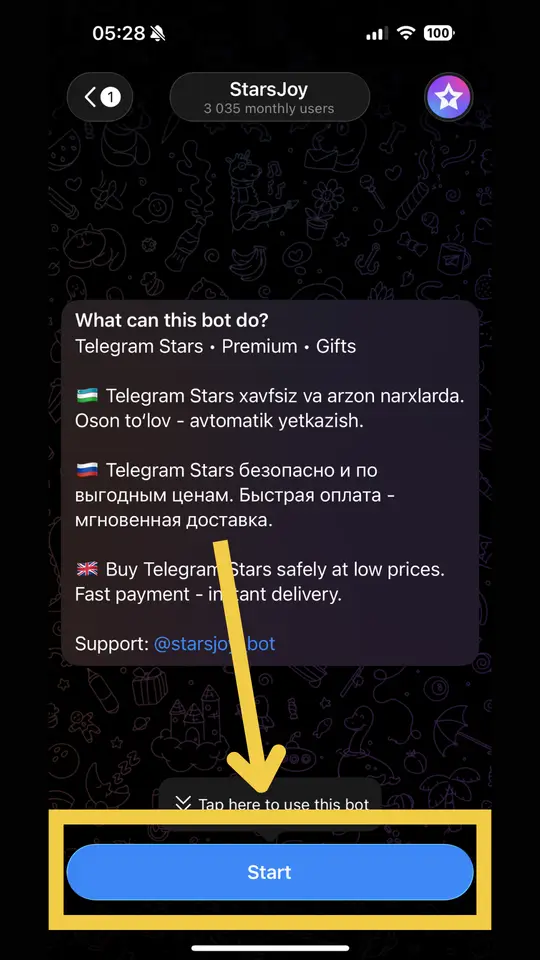
    The StarsJoy Telegram bot opening screen with the blue Start button highlighted at the bottom
    Step 1: open @starsjoybot and press Start.
  2. Step 2

    Open the Mini App with the App button

    After Start the bot sends the public offer terms and a link to starsjoy.uz/oferta. Pressing START means you accept those terms. Then tap the blue App button in the bottom-left corner of the message field — this opens the StarsJoy Mini App, which is where the whole purchase happens.
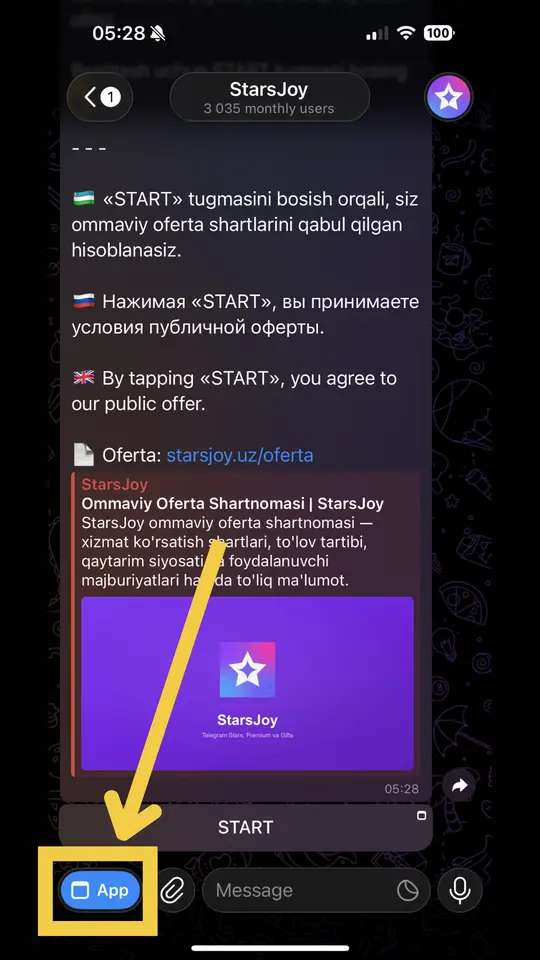
    The public offer message in the Telegram bot with the blue App button highlighted in the bottom-left corner
    Step 2: the App button opens the StarsJoy Mini App.
  3. Step 3

    Choose what you want: Stars, Gift or Premium

    The Mini App home screen has three cards: Stars, Gift and Premium. Tap whichever you want to buy. The flow is identical for all three — only the amount step differs, and the bottom navigation lets you switch between them at any time.
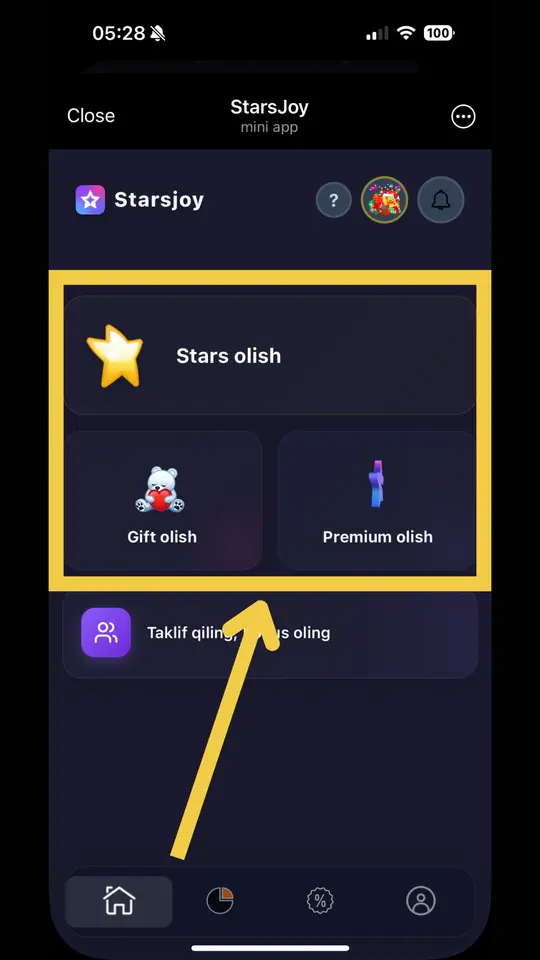
    The StarsJoy Mini App home screen showing the Stars, Gift and Premium sections
    Step 3: pick one of the three sections.
  4. Step 4

    Say who it is for

    Type the recipient's Telegram username into the '@username' field. If you are buying for yourself, tap the blue 'Myself' button on the right and it fills in automatically. This is the only piece of account information the service ever needs — your password and SMS login code are never requested and must never be given to anyone.
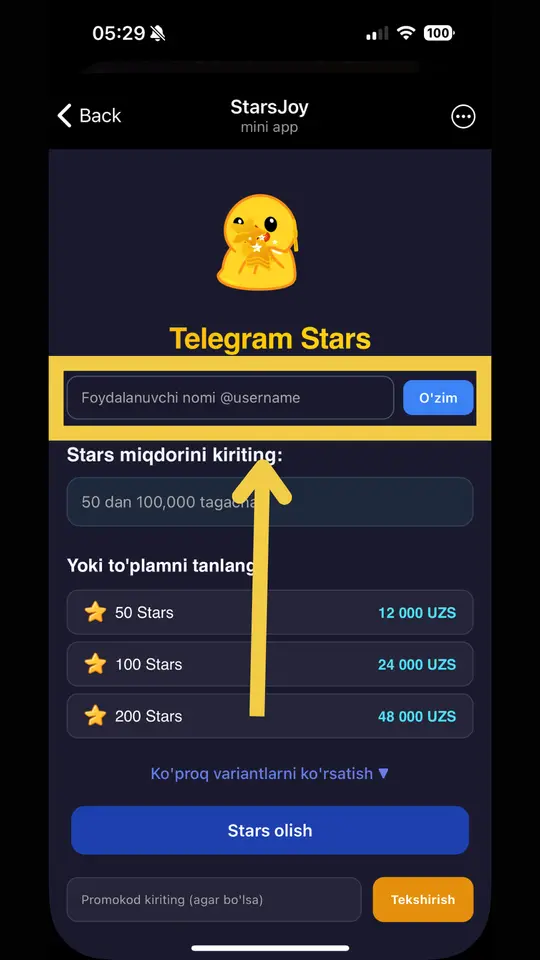
    The username input field on the Telegram Stars screen with the 'Myself' button highlighted
    Step 4: enter a username or tap Myself.
  5. Step 5

    Choose the amount or a ready-made pack

    For Stars, type any number from 50 to 100,000 or pick a ready pack: 50 Stars — 12,000 UZS, 100 Stars — 24,000 UZS, and so on at a flat 240 UZS per star. For Premium, choose a 3, 6 or 12-month plan instead. If you have a promo code, apply it here with the check button.
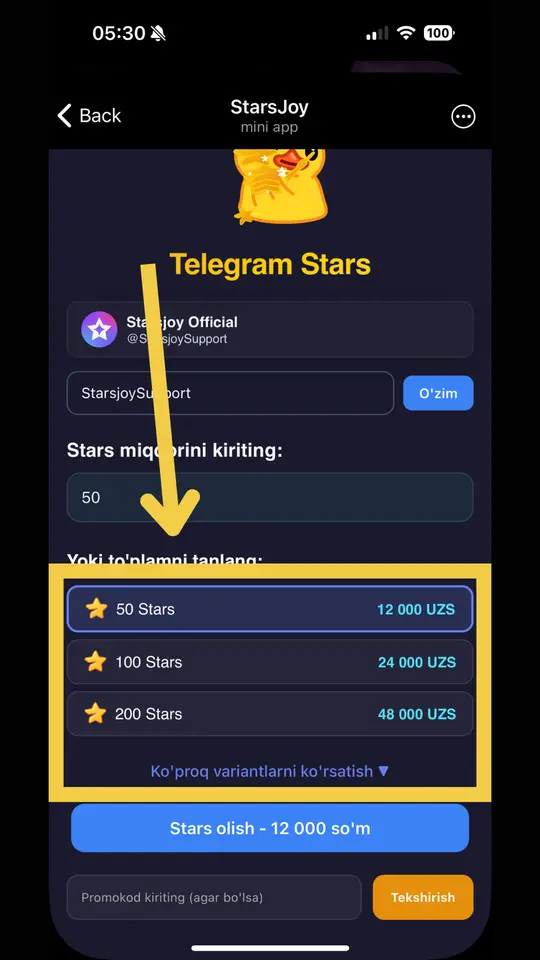
    The list of Stars packs: 50 Stars 12,000 UZS, 100 Stars 24,000 UZS, 200 Stars 48,000 UZS
    Step 5: an amount for Stars, or a 3/6/12-month term for Premium.
  6. Step 6

    Press the purchase button

    Once the amount is selected, the blue button at the bottom shows the final total — for example 'Buy Stars — 12,000 UZS'. The number on that button is exactly what you will pay; there is no fee added afterwards.
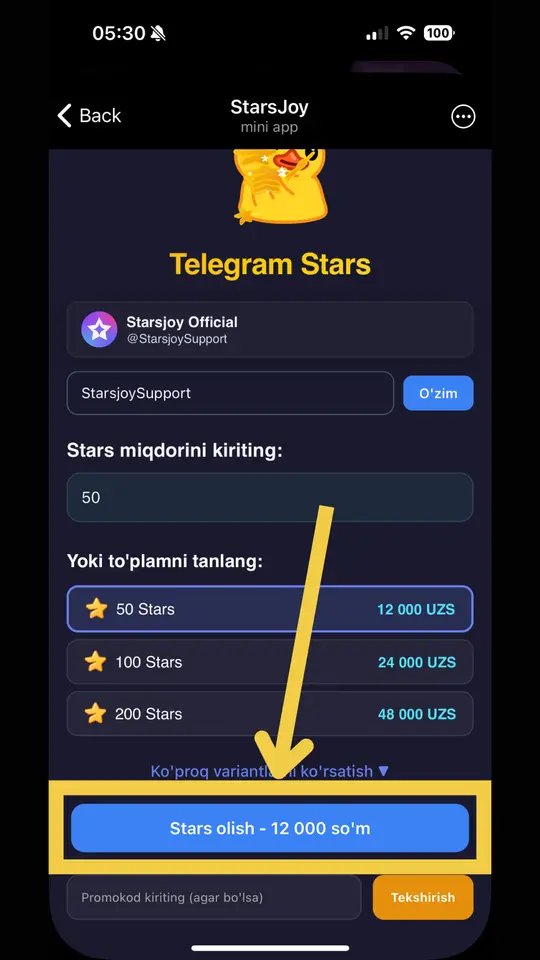
    The blue purchase button reading 'Buy Stars — 12,000 UZS' highlighted
    Step 6: the number on the button is the final price.
  7. Step 7

    Copy the card number

    A 'Payment details' window opens showing a card number, the cardholder's name and the amount. Use the copy icon next to the card number to copy it. Important: the card number changes over time, so always use the number shown in your own order window — never one you saved earlier or saw in a screenshot.
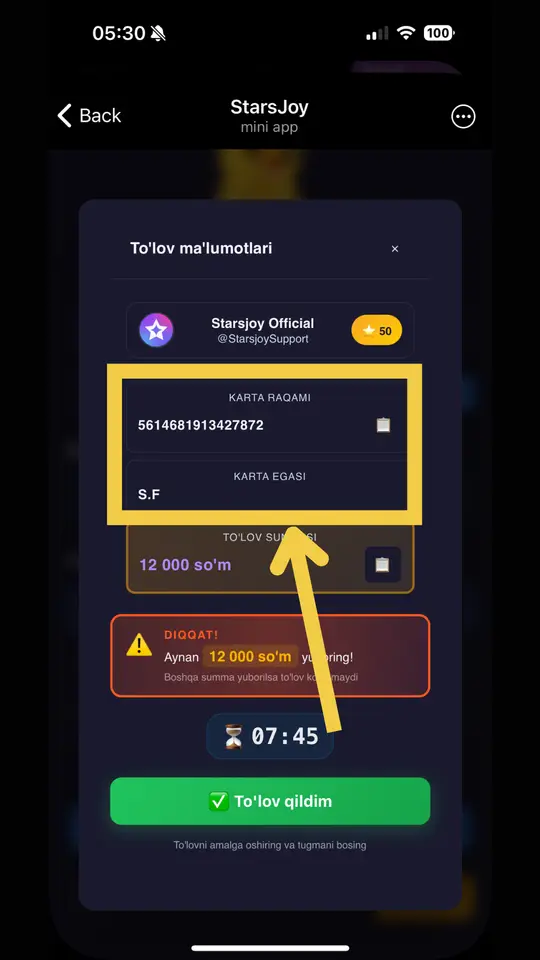
    The StarsJoy payment details window with the card number and cardholder name fields highlighted
    Step 7: copy the card number with the copy icon.
  8. Step 8

    Transfer exactly the amount shown

    Send exactly the displayed amount to the copied card. You can make the transfer from any app you like — Click, Payme, Uzum or your own bank's app; it makes no difference. What matters is that the money reaches that card for exactly that amount, down to the last so'm. A different amount will not be recognised by the system. A payment timer runs in the window.
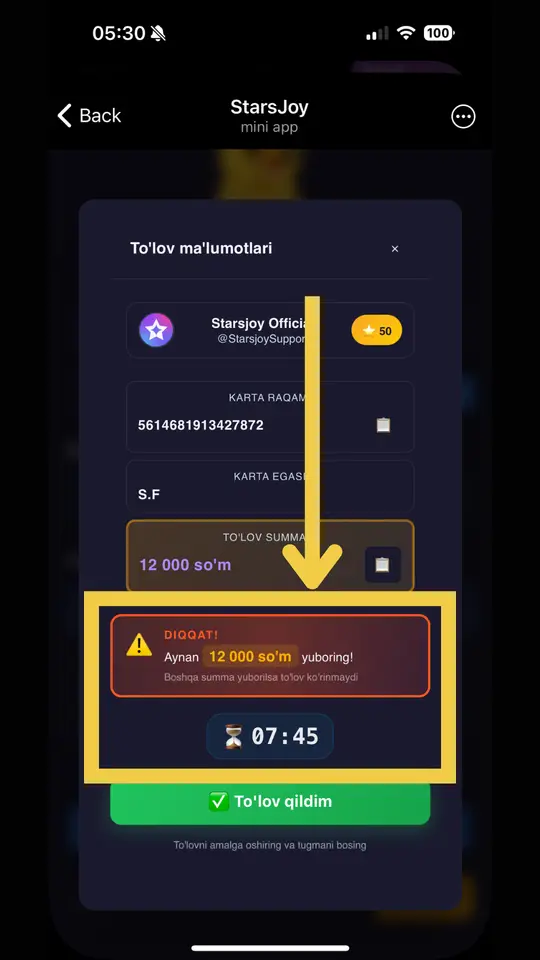
    The red warning in the payment window explaining that the exact amount must be sent, with the countdown timer
    Step 8: any app works, but the amount must match exactly.
  9. Step 9

    Press 'I have paid'

    After the transfer, press the green 'I have paid' button. The payment is then verified and the Stars or Premium usually reach the account within about 10 seconds. Under heavy load it can take a few minutes, but the order is never lost — and if the service is not delivered at all, you get a full refund.
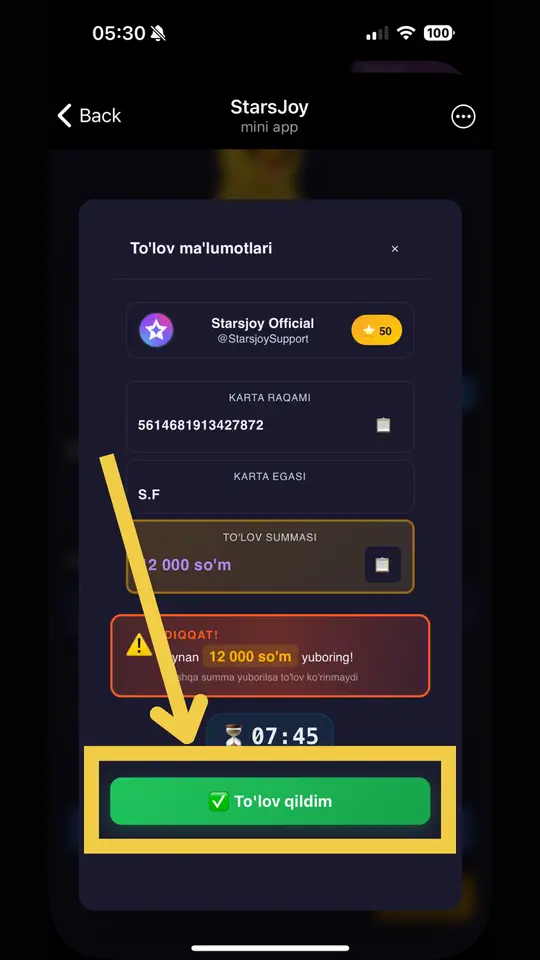
    The StarsJoy payment window with the green 'I have paid' button highlighted
    Step 9: 'I have paid' sends the order for verification.
Note: the card number and prices in the screenshots are illustrative. The receiving card number changes over time, so never send money to the number in an image — always use the one shown in your own order window inside the Mini App. The interface in these shots is in Uzbek; the bot also runs in English and Russian, and you can switch the language inside it.

Four rules that prevent every common mistake

Something went wrong? Message support at @starsjoy_bot with your receipt. If the service was not delivered, you get a 100% refund.

Questions about the purchase process

No. Your Telegram account is enough — there is no separate sign-up, no password and no SMS confirmation. You open @starsjoybot, press Start and go straight into the Mini App.
Never. The only thing the service needs is a Telegram username. Stars and Premium are delivered through Telegram's official gift mechanism, which does not require account access. Any service asking for your password or SMS code is trying to steal your account.
Any Uzcard or Humo card issued in Uzbekistan. The transfer itself can be made from Click, Payme, Uzum or your bank's own app — the system only checks that the correct amount reached the correct card. Visa and Mastercard are not needed.
The system matches payments by exact amount, so a different sum will not be recognised automatically. If this happens, contact support through the bot with your receipt and it will be resolved manually.
Always the one in your own order window. The screenshots here are illustrative and the receiving card number changes over time. Never send money to a card number you saved earlier or copied from a guide.
Placing the order takes about 2–3 minutes. Delivery after payment is confirmed is usually about 10 seconds.
Yes. Instead of tapping 'Myself' at step 4, enter the recipient's Telegram username. They receive the Stars, Premium or Gift directly and pay nothing.
Contact support at @starsjoy_bot with your payment receipt. If the service was not delivered, the full amount is refunded.
Nima xarid qilmoqchisiz?
⭐ Stars 💎 Premium